
Connecting Your Smart Lock to Alexa Easily
Disclosure: Some links here are affiliate links. We may earn a commission at no extra cost to you. As an Amazon Associate, AutomateVerge earns from qualifying purchases. Read our affiliate disclosure.
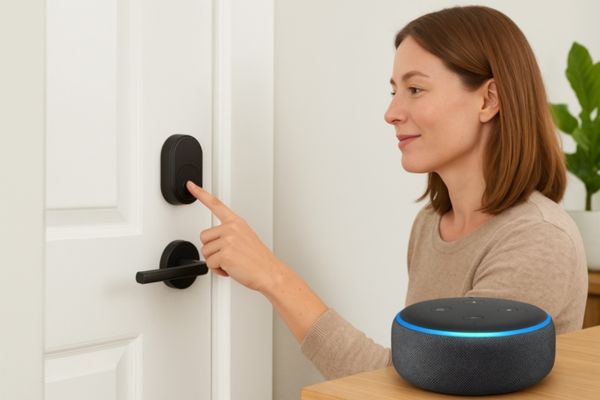
If you’re wondering how to connect smart lock to Alexa, the process is actually easier than most people think. By linking your smart lock with Alexa, you can lock or unlock your door using simple voice commands, create smart home routines, and check your door status hands-free. Whether you use August, Schlage, Yale, or Level Lock, this guide will show you exactly how to connect your smart lock to Alexa step-by-step.
Have you ever rushed out of the house, then suddenly wondered, “Did I lock the door?” Or maybe you’ve come home with your hands full and wished you could just ask your home to lock itself?
That’s where connecting your smart lock to Alexa makes life easier and smarter. In this complete guide, I’ll walk you through how to connect your smart lock to Alexa step-by-step. Whether you’re using August, Schlage, Yale, or Level Lock, you’ll learn how to set it up, use voice commands, fix common issues, and make your smart home work seamlessly.
By the end, you’ll be able to say:
“Alexa, lock the door,”
and watch it happen no phone, no app, no hands needed.
Why Connect Your Smart Lock to Alexa for Voice Control?
Linking your smart lock with Alexa isn’t just a cool trick it’s a major upgrade in security, comfort, and convenience. Here’s why:
🗣️ Hands-Free Convenience
Forget about fumbling for keys. Just say:
“Alexa, lock the front door.”
And done your door is secure without lifting a finger. When you’re half-asleep or carrying groceries, this small convenience feels like magic.
🔒 Real-Time Security Awareness
Wondering if the door’s locked? Just ask:
“Alexa, is my door locked?”
You’ll instantly know the status — no walking to check, no app opening, no guessing.
🧠 Smart Home Automation
When Alexa knows your lock, it becomes part of your home’s routines.
For example:
- “Alexa, goodnight.” → Locks the doors, turns off lights, lowers the thermostat.
- “Alexa, I’m leaving.” → Locks doors, arms security cameras, powers down unnecessary devices.
It’s not just about voice control it’s about creating a home that responds intelligently to your lifestyle.
What You Need to Connect Smart Lock to Alexa
Before diving into the setup, make sure you have everything ready.
| Requirement | Description |
| Compatible Smart Lock | Works with Alexa (e.g., August Wi-Fi Smart Lock, Schlage Encode, Yale Assure, Level Lock). |
| Alexa-Enabled Device | Echo, Echo Dot, Echo Show, or other Alexa-supported device. |
| Stable Wi-Fi or Hub Connection | For Zigbee/Z-Wave locks, you may need a hub like the Philips Hue Bridge or SmartThings. |
| Apps | – Alexa App (iOS/Android)- Lock brand app (August Home, Yale Access, or Schlage Home). |
| Updated Firmware | Both the Alexa app and your lock’s firmware should be up to date. |
💡 Pro Tip: If your smart lock requires a Wi-Fi bridge (like August Smart Lock 3rd Gen), connect it before linking to Alexa.
Step-by-Step: How to Connect Smart Lock to Alexa
Here’s the complete setup process.
🔹 Step 1: Set Up Your Smart Lock
Install your smart lock according to the manufacturer’s instructions. Then, open the lock’s native app (like August Home App or Schlage Home App) and pair your device.
Make sure:
- It’s connected to your Wi-Fi or bridge.
- The lock appears as “Online” in the app.
- You can lock/unlock it from the app before linking to Alexa.
🔹 Step 2: Open the Alexa App
- Launch the Alexa App.
- Tap Devices at the bottom.
- Tap the “+” icon → select Add Device.
- Choose Lock → select your brand (August, Yale, Schlage, or Level).
🔹 Step 3: Enable the Alexa Skill for Your Lock
To let Alexa communicate with your smart lock, you need to enable the manufacturer’s Alexa Skill.
Here’s how:
- Tap Enable Skill.
- Search for the skill that matches your brand (e.g., August Smart Home, Schlage Home, Yale Access, Level Home).
- Log in with your account credentials.
- Authorize Alexa to access your lock.
This creates a secure link between the Alexa ecosystem and your smart lock’s cloud service.
🔹 Step 4: Discover Your Device
Once the Skill is enabled, Alexa will automatically start discovering devices. Tap Discover Devices and wait for a few seconds.
If your lock doesn’t show up:
- Ensure both devices are connected to the same WiFi.
- Check that your lock is powered and within range.
- Try refreshing the Alexa app or restarting your Echo device.
🔹 Step 5: Test It Out
Now comes the best part testing! Try:
- “Alexa, lock the front door.”
- “Alexa, is the door locked?”
If you want to unlock using Alexa, go to the Alexa App → Devices → Your Lock → Settings → Enable Voice Unlock and set a PIN code.
Example:
“Alexa, unlock the door.”
Alexa: “What’s your voice code?”
You: “1234.”
That’s it your home just obeyed your voice.
💡 Pro Tip: Choose a PIN that’s easy for you but hard for others to guess. Avoid birthdays or simple sequences like 1111.
Popular Alexa Commands for Smart Locks
Here’s a quick list of voice commands you’ll actually use.
| Command | Action |
| “Alexa, lock the front door.” | Instantly locks your door. |
| “Alexa, is my door locked?” | Alexa tells you the lock status. |
| “Alexa, unlock the front door.” | Unlocks (after verifying your PIN). |
| “Alexa, set goodnight routine.” | Locks the door and triggers other routines. |
👉 Security Note: Alexa will never unlock your door unless a PIN is provided — even if someone shouts from outside.
How to Use Alexa Routines with Your Smart Lock
Once your lock is linked, you can include it in Alexa routines to automate everyday actions.
🌙 Goodnight Routine
Trigger phrase:
“Alexa, goodnight.”
Actions:
- Turns off lights.
- Lowers the thermostat.
- Locks all doors.
🚪 Away Mode
Trigger phrase:
“Alexa, I’m leaving.”
Actions:
- Locks every smart lock.
- Arms your security camera or alarm.
- Turns off unnecessary lights and plugs.
🌅 Morning Routine
Trigger phrase:
“Alexa, good morning.”
Actions:
- Unlocks selected doors.
- Adjusts thermostat.
- Turns on kitchen lights.
- Reads your daily briefing.
Brand Specific Setup Guides
Now, let’s break down the process for major smart lock brands.
Each has slightly different steps and features when connecting to Alexa.
🏠 August Smart Lock
Requirements:
- August Wi-Fi Smart Lock (4th Gen) or August Smart Lock + Connect Wi-Fi Bridge.
- August Home App (updated).
- Alexa App and Echo device.
Steps:
- Set up your August Lock in the August App.
- Ensure remote access works (lock/unlock via the app).
- Open Alexa App → Devices → Add Device → Lock → August.
- Enable August Smart Home Skill.
- Log in using your August account.
- Authorize Alexa → Tap Discover Devices.
✅ Supported Commands:
- “Alexa, lock the front door.”
- “Alexa, is the door locked?”
- “Alexa, unlock the front door” (requires voice PIN).
Troubleshooting Tips:
- If Alexa doesn’t find your lock, restart the August Connect bridge.
- Update firmware in the August App.
- Check Wi-Fi stability.
🏡 Schlage Encode Smart Lock
Requirements:
- Schlage Encode or Encode Plus (Wi-Fi built-in).
- Schlage Home App.
- Alexa enabled device.
Steps:
- Open Schlage Home App → Connect to Wi-Fi.
- Add your lock → Create a name (e.g., “Front Door”).
- In Alexa App → Add Device → Lock → Schlage.
- Enable Schlage Home Skill → Sign in → Authorize.
✅ Supported Commands:
- “Alexa, lock Front Door.”
- “Alexa, is Front Door locked?”
- Unlocking requires PIN setup.
Advantages:
- No bridge needed.
- Works with both Alexa and Google Assistant.
- Reliable Wi-Fi connection and firmware updates.
Common Issues:
- Use 2.4GHz Wi-Fi, not 5GHz.
- Ensure the lock is near the router for initial setup.
🏘️ Yale Assure Lock
Requirements:
- Yale Assure Lock SL or Yale Assure 2 (Wi-Fi or via Connect bridge).
- Yale Access App.
- Alexa App.
Steps:
- Pair the lock in the Yale Access App.
- Make sure remote access works.
- Enable Yale Access Alexa Skill in the Alexa App.
- Log in and authorize.
- Tap Discover Devices.
✅ Commands:
- “Alexa, lock the back door.”
- “Alexa, is the back door locked?”
💡 Pro Tip: Yale Assure 2 integrates with Matter so it’ll work even more seamlessly with Alexa and future smart home ecosystems.
🏡 Level Lock
Requirements:
- Level Lock, Level Bolt, or Level Lock Plus.
- Level Home App.
- Alexa device with Bluetooth + Wi-Fi.
Steps:
- Install and pair using the Level Home App.
- Tap Add to Alexa → or manually enable Level Home Skill.
- Sign in with your Level credentials.
- Alexa will discover your device automatically.
✅ Commands:
- “Alexa, lock the front door.”
- “Alexa, is the front door locked?”
Highlights:
- Sleek, invisible design (fits into existing deadbolts).
- Secure encryption and Apple HomeKit compatibility.
- Excellent for renters or minimalist homes.
Troubleshooting Common Problems
| Problem | Cause | Fix |
| Alexa can’t find my lock | Weak Wi-Fi, app glitch, or outdated firmware | Restart devices, ensure same Wi-Fi, re-link Skill |
| Skill authorization failed | Wrong login or expired token | Disable and re-enable Skill, then log in again |
| Lock unresponsive | Outdated firmware or Alexa bug | Update via lock app, restart Alexa device |
| Unlock voice command not working | Voice Unlock not enabled | Go to Alexa App → Devices → Your Lock → Enable Voice Unlock + PIN |
Security & Privacy Tips
When it comes to smart locks, convenience should never compromise safety.
Here’s how to stay secure:
- Always use a voice PIN for unlocking.
- Avoid sharing your Alexa account with too many users.
- View Alexa activity logs periodically.
- Update firmware regularly.
- Disable remote unlock if you’re away for long periods.
📎 Related: [Smart Home Privacy Tips Protecting Your Data]
Advanced: Automating Your Smart Lock with Alexa Routines
To take your setup to the next level, you can use Alexa Routines creatively:
- Geo-location Triggers: Lock doors automatically when you leave the house.
- Scheduled Locking: Have Alexa lock doors every night at 10 PM.
- IFTTT Integration: Connect Alexa to IFTTT for more complex automations like “If motion is detected at night → lock the door.”
FAQ
Final Thoughts
Once your smart lock and Alexa start talking, your home becomes more than connected it becomes intuitive. You can lock your doors with your voice, integrate them into routines, and monitor your security from anywhere.
No more second-guessing, no more key fumbling.
Just say:“Alexa, lock up,”
and it’s done.