
Troubleshooting Devices That Won’t Connect (Step by Step Fix Guide)
Disclosure: Some links here are affiliate links. We may earn a commission at no extra cost to you. As an Amazon Associate, AutomateVerge earns from qualifying purchases. Read our affiliate disclosure.
Smart home devices not connecting can quickly turn a convenient setup into a frustrating mess. If your smart light, plug, lock, or camera refuses to sync, don’t panic. Most smart home connection problems are caused by Wi-Fi settings, app pairing issues, outdated firmware, or hub compatibility errors and many of them can be fixed in just a few minutes.
In this guide, we’ll walk through how to fix smart home devices not connecting step by step, so you can get your devices back online and working together again.
Why Smart Devices Sometimes Refuse to Connect
Smart home devices connecting systems depend on a delicate digital handshake between your Wi-Fi network, hub (if used), mobile app, and device firmware. When even one link breaks, things stop syncing.
Here are the most common causes:
- Wi-Fi Issues: Many smart devices only support 2.4GHz, not 5GHz.
- Outdated Firmware: Your router, app, or device might be running old software.
- Wrong App or Account: Trying to connect your device through Alexa before pairing it in its own app first.
- Hub Compatibility: Zigbee, Z-Wave, and Matter devices sometimes require specific hubs.
📊 Connection Chain Example:
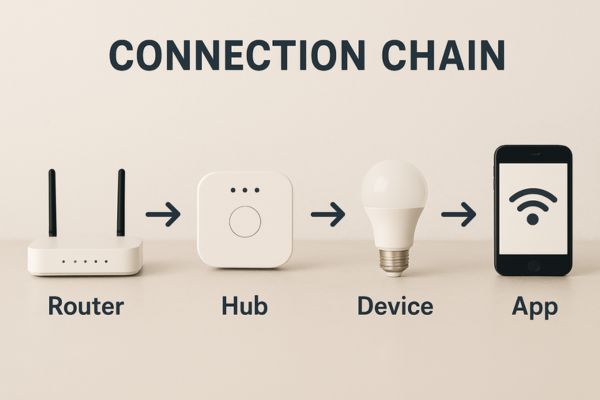
Router → Hub/Bridge → Smart Device → App → Cloud → Voice Assistant
When any link breaks, the connection fails.
📎 Related read: What Is Smart Home Connectivity (Wi-Fi, Zigbee, Z-Wave, Matter)
Step 1: Check Your WiFi Network
Let’s start with the biggest troublemaker: Wi-Fi.
Most smart home devices use 2.4GHz connecting frequency because it has better range and penetration than 5GHz but many routers today default to 5GHz. That mismatch can cause pairing problems.
✅ Quick Fix Checklist
- Make sure your device supports 2.4GHz, and your phone is on the same network.
- Reboot your router this solves 70% of connection problems.
- Move the device closer to the router during setup.
- Temporarily disable VPN or mobile data on your phone during pairing.
- Check your router’s SSID (Wi-Fi name) avoid using special symbols.
💡 Pro Tip: If your router broadcasts both 2.4GHz and 5GHz under the same name, rename one temporarily (like “Home_2.4”) just for setup.
📎 Explore more: Best Mesh Wi-Fi Systems for Smart Homes
Step 2: Verify App and Account Setup
If your Wi-Fi checks out, the next likely culprit is the app or account connection.
Every brand has its own app (TP-Link uses Kasa, Philips Hue uses Hue app, etc.). But if you jump straight to Alexa, Google Home, or SmartThings before setting up the device in its native app, pairing often fails.
✅ Steps to Fix
- Open the manufacturer’s app and log in with your official account.
- Add the device there first wait for confirmation that it’s connected locally.
- Once confirmed, open your voice assistant app (like Alexa).
- Enable the skill or link the account.
- Run “Discover Devices” again.
💡 Example: To connect a Kasa smart plug to Alexa, first add it in the Kasa app, then link the Kasa skill in Alexa → finally, say “Alexa, discover devices.”
Step 3: Confirm Hub or Bridge Is Online
If you’re using Zigbee, Z-Wave, or certain smart lighting systems (like Philips Hue), your hub or bridge acts as the middleman.
When that hub is offline, the entire system stops responding even if your Wi-Fi is fine.
✅ What to Check
- Is your hub powered on and its LED indicator showing online status?
- Is it connected to the router via Ethernet (not just Wi-Fi)?
- Have you updated the hub’s firmware recently?
- Are you within range limits (typically 10-15 meters for Zigbee/Z-Wave)?
💡 If your hub has been idle for a while, unplug it, wait 10 seconds, and plug it back in.
Step 4: Reset and Repair the Device
Sometimes, the easiest fix is a clean slate. If your device refuses to connect after multiple attempts, perform a factory reset and start fresh. Most smart devices have a tiny reset button or require holding the power button for a few seconds.
✅ Reset Cheat Sheet
| Brand | Reset Method | LED Indicator |
| TP-Link Kasa | Hold power button 5 sec | Blinking orange/blue |
| Philips Hue Bulb | Power on/off 5 times | Pulsing light |
| Amazon Smart Plug | Hold button 12 sec | Red light → blinking blue |
| Google Nest Camera | Hold reset pin 15 sec | White flashing LED |
| Eufy / Tapo Devices | Hold for 10 sec | Blinking amber |
💡 Tip: After resetting, wait for the LED to flash in pairing mode before trying to reconnect.
Then redo the pairing sequence via the brand app first, then link it to your smart home hub or Alexa/Google account.
Step 5: Check Device Compatibility
Sometimes the device itself is perfectly fine it’s just not compatible with your ecosystem or hub. For example:
- Older Zigbee or Z-Wave sensors might not connect to Matter-enabled hubs.
- Some smart plugs don’t support Apple HomeKit at all.
- Budget smart bulbs often skip integration with Google Home.
✅ Compatibility Tips
- Check the product specs or box for the “Works with…” label.
- Make sure your hub’s firmware supports Matter, the new universal standard designed to simplify smart home compatibility.
- Use Matter-enabled devices to reduce future setup headaches.
📎 Learn more: [Matter Explained: The Future of Compatibility]
Step 6: Look for Firmware Updates
Firmware updates don’t just add new features they fix hidden bugs that might cause disconnections.
✅ Update Steps
- Open your device’s companion app.
- Go to Settings → Device Info → Firmware Update.
- If an update is available, install it.
- Afterward, restart your hub and router to ensure all connections refresh.
💡 Keeping all devices updated (including your router!) helps avoid silent errors.
Common Device Specific Issues
Each type of smart device tends to fail in its own way. Here’s what to watch for:
🪄 Smart Plugs
- Only connect via 2.4GHz Wi-Fi.
- Some require the app to have location permission turned on.
💡 Smart Lights
- Must be set up in the brand app first before adding to Alexa or Google.
- Avoid turning the light off during pairing it breaks the setup loop.
🎥 Smart Cameras
- Require strong, stable Wi-Fi and open firewall ports.
- Bandwidth heavy avoid pairing multiple cameras simultaneously.
Bonus Tip: Prevent Future Connection Problems
Once your devices are finally connected, let’s keep them that way.
✅ Best Practices
- Keep all smart devices on the same Wi-Fi SSID.
- Avoid renaming devices with emojis or special symbols.
- Label your 2.4GHz and 5GHz networks clearly.
- Use a mesh WiFi system for stable, whole-home coverage.
- Check connections monthly and reboot your router every few weeks.
📎 Helpful read: [Creating a Future-Proof Smart Home Setup]
🧩 FAQ: Troubleshooting Smart Home Devices That Won’t Connect
When to Factory Reset or Contact Support
If you’ve tried every step above and your smart home device still refuses to connect, it might be time to call in backup.
✅ Try a Factory Reset First
A full reset wipes all stored data and lets you start clean. Follow the manufacturer’s instructions carefully. If the device still won’t connect afterward, contact the brand’s support:
- TP-Link Support
- Philips Hue Support
- Amazon Alexa Help
- SmartThings Support
- Google Nest Help
Conclusion
Most smart home connection fails aren’t your fault your devices just need a little digital therapy. Whether it’s a mismatched Wi-Fi band, an outdated hub, or an app that forgot who you are, these steps will help you reconnect your home (and your sanity).
Stay patient, reboot often, and remember: sometimes the smartest fix is simply turning it off and back on again.
👉 Next up: Smarter Homes, Smarter Heating: Introducing Emerson Sensi